CrowdHandler Behind Imperva CDN
If your site is fronted by Imperva, you can keep it there and add CrowdHandler behind it. Your DNS stays at Imperva, Imperva sends traffic to CrowdHandler, and CrowdHandler sends it on to your origin.
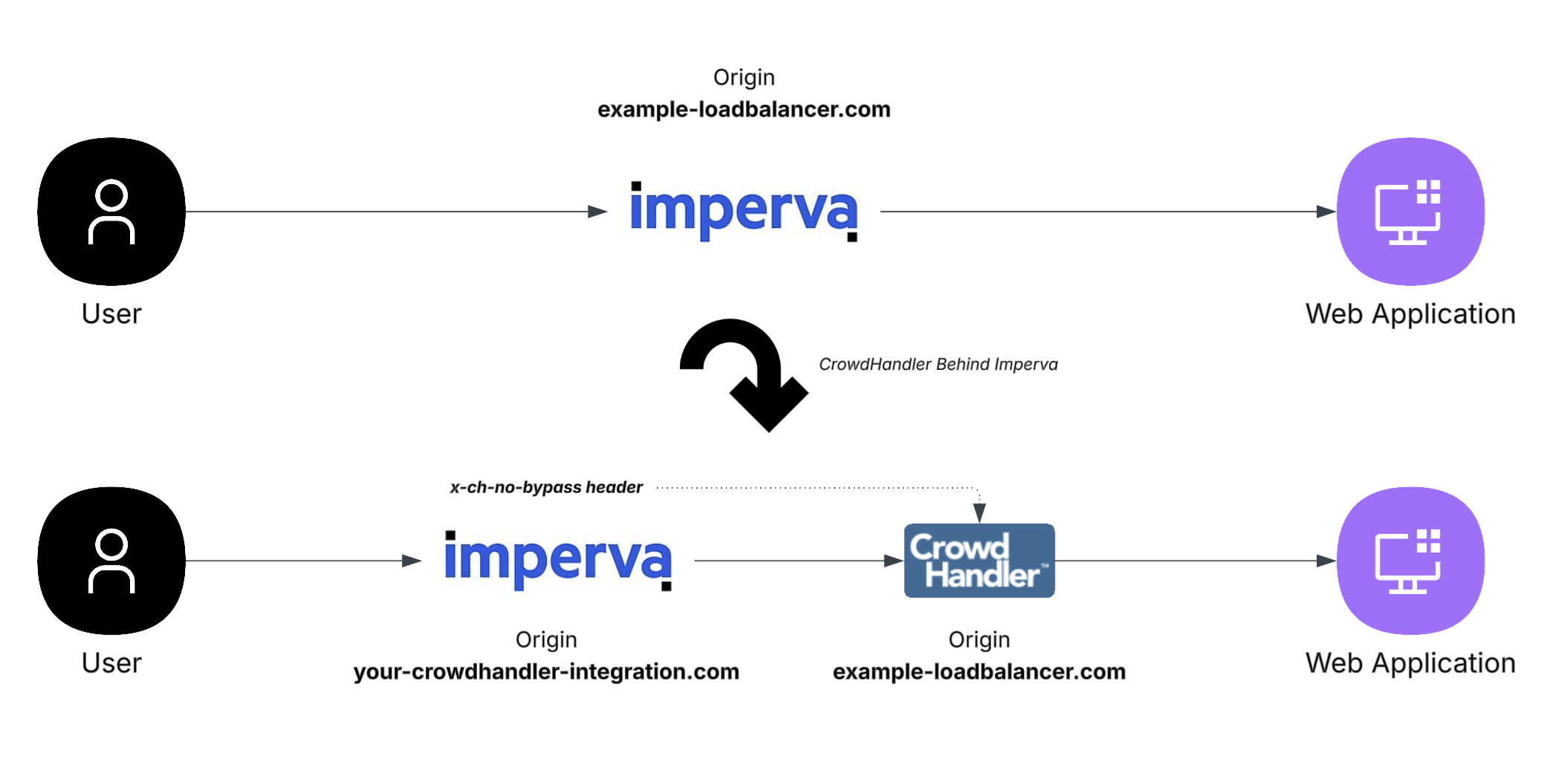
This guide uses the Appcelerator (DNS) integration. If you run CrowdHandler on your own CloudFront distribution instead, follow the CloudFront guide and point Imperva's origin at that distribution.
Before you start
- Access to your Imperva account with permission to change the site's origin and rules.
- A CrowdHandler account on the Standard plan or above.
- The domain you want to protect already resolving to Imperva. It keeps resolving to Imperva throughout.
Step 1: Onboard the domain in CrowdHandler
Follow the Appcelerator getting started guide up to the Go Live step: add the domain, request the certificate, add the validation record at your DNS provider, and set your origin.
Set the origin to the hostname Imperva currently sends traffic to. That is where CrowdHandler will send it from now on.
Stop when you reach the Go Live panel. Do not change your domain's DNS record.
Step 2: Set the Setup Type to Imperva
In the Go Live panel, change Setup Type to Imperva.
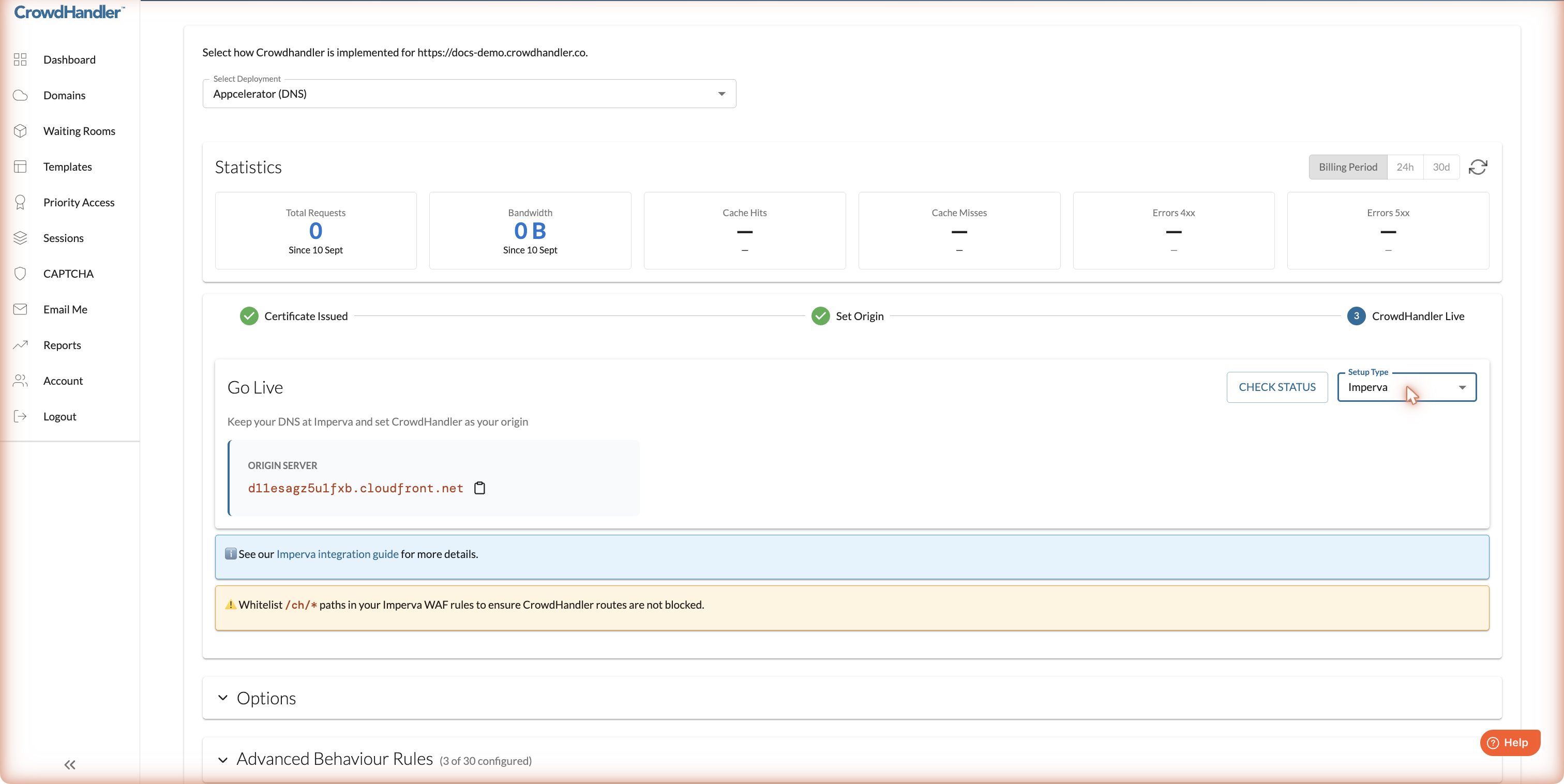
This does two things. The instructions switch to the Imperva flow and show your CrowdHandler endpoint as Origin Server. And CrowdHandler stops adding its own x-ch-no-bypass header, so a header set in Imperva reaches your origin unchanged (see Step 4).
Step 3: Point Imperva at CrowdHandler
In Imperva, change the site's origin address to the Origin Server value from the Go Live panel. It is a cloudfront.net hostname.
Then allow the /ch/* path in your Imperva WAF rules. CrowdHandler serves its waiting room and configuration from those paths, and blocking them breaks the waiting room.
Traffic now flows Imperva → CrowdHandler → your origin. Click Check Status on the domain's settings page to confirm CrowdHandler is seeing it.
Step 4 (optional): Protect your origin
Anyone who discovers your origin's address, or your CrowdHandler endpoint, can send requests that skip Imperva. To reject those:
- Create a rule in Imperva that adds a request header named
x-ch-no-bypasswith a secret value of your choosing. - Configure your origin to reject any request where that header is missing or has a different value. Examples for common servers and languages are in Guarding against DNS bypass attempts.
Because CrowdHandler relays the header rather than replacing it, a valid value at your origin proves the request came through Imperva and CrowdHandler. A request sent straight to either one arrives with no header and is rejected.
If you already validate a CrowdHandler-generated token at your origin, switch the origin check to your Imperva value before setting the Setup Type to Imperva, since CrowdHandler stops sending its own token at that point.
Visitor IP addresses
With Imperva in front, CrowdHandler sees Imperva's addresses rather than your visitors'. Imperva sends the real address in its incap-client-ip header, but CrowdHandler only trusts that header for domains where we have enabled it. Email support@crowdhandler.com with the domain once it is live and we will switch it on. Until then, features that depend on the visitor's address, such as IP-based priority access and IP reporting, will not work as expected.
Checking it works
- Browse the site. Responses that passed CrowdHandler's check-in carry a
crowdhandlercookie. - Open a waiting room on the domain in the CrowdHandler control panel and visit the site. You should see the waiting room. If you see your site instead, the
/ch/*path is probably blocked in Imperva. - If Step 4 is in place, request your CrowdHandler endpoint directly with the site's hostname. It should be rejected by your origin.
Switching back
Setting the Setup Type back to Direct DNS makes CrowdHandler add its own x-ch-no-bypass token again, shown under Options on the domain's settings page. Update your origin check to match if you use it.